Release budget by period
Choose every 1, 2, 3, 4, 6 or 12 months, aligned to January. RM 6,000 a year can become RM 1,500 per quarter.
BMO e-Claim · Employee expense management
Give employees a simple way to submit expenses. Give HR and Finance the control to set budgets, apply policies and send each claim to the right approvers, on web and mobile.
New in BMO e-Claim
Two new ways to manage spending and approvals, using the employee types and claim types you already work with.
Set annual entitlements by employee type, release them by period and stop over-budget submissions.
Explore claim budgets 02 / APPROVAL ROUTINGRoute expenses by claim type, with different approval sets for selected employee types.
Explore approval routing01 / Claim Budget by Employee Type
Set one annual budget for each employee type and claim type. BMO splits it into periods and checks the available balance before a claim reaches the approver.
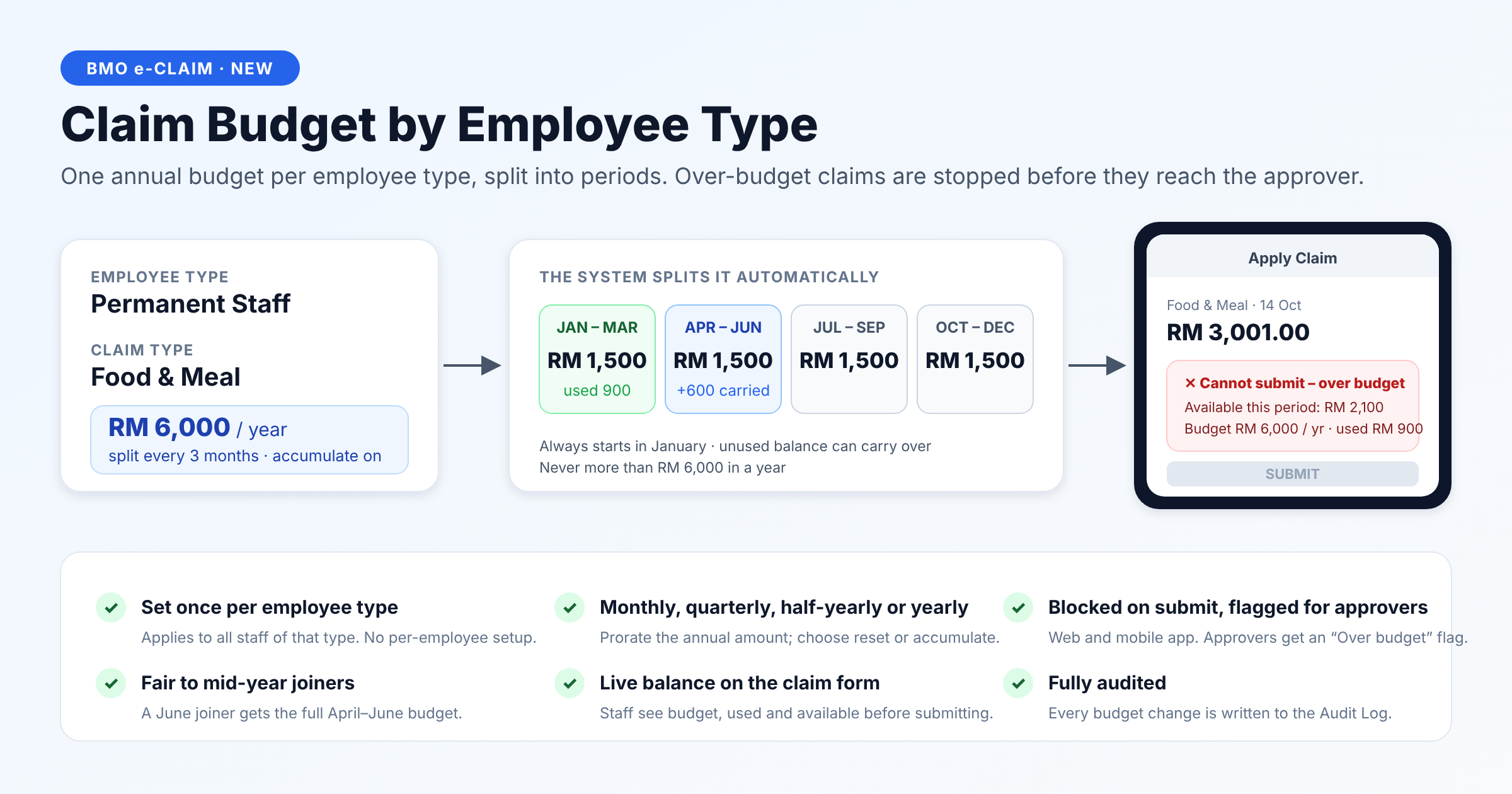
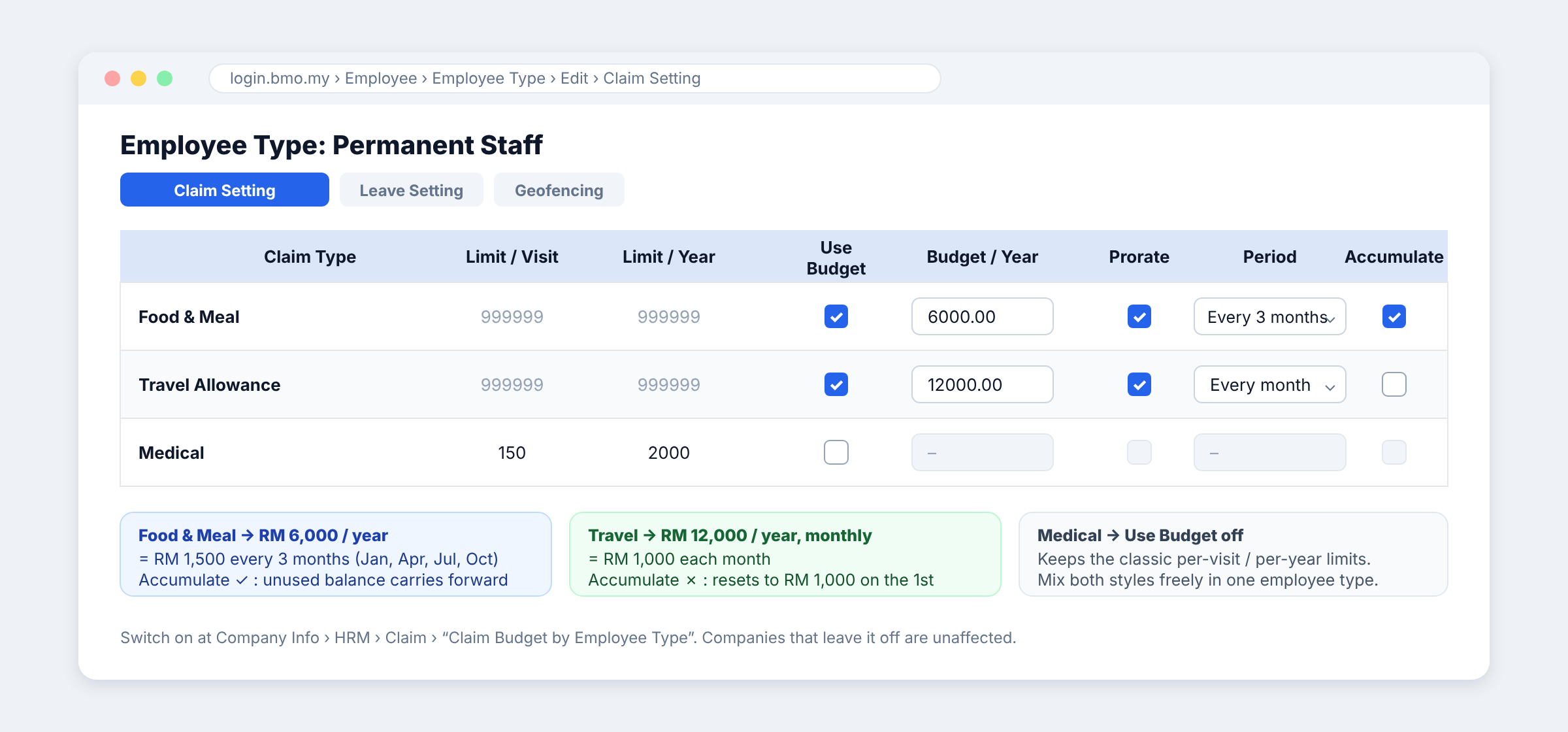
Choose every 1, 2, 3, 4, 6 or 12 months, aligned to January. RM 6,000 a year can become RM 1,500 per quarter.
Turn Accumulate on to carry unused balance into the next period within the year. Keep the annual cap and reset on 1 January.
One setup applies to everyone of that type. Mid-year joiners receive the full budget for their joining period.
Control at the point of submission. Employees see budget, used and available amounts on the form. Over-budget claims are blocked on web and mobile; later edits that exceed the budget are flagged for approvers.
Under Employee › Employee Type › Claim Setting, enable Use Budget, enter Budget/Year and choose the period and Accumulate option. Claim types without Use Budget keep their classic per-visit and per-year limits.
02 / Claim Approval by Claim Type
Send mileage to the Fleet Manager and travel to Finance. Need a Director’s flight approved by the Board? Add an employee-type exception on the same claim type.
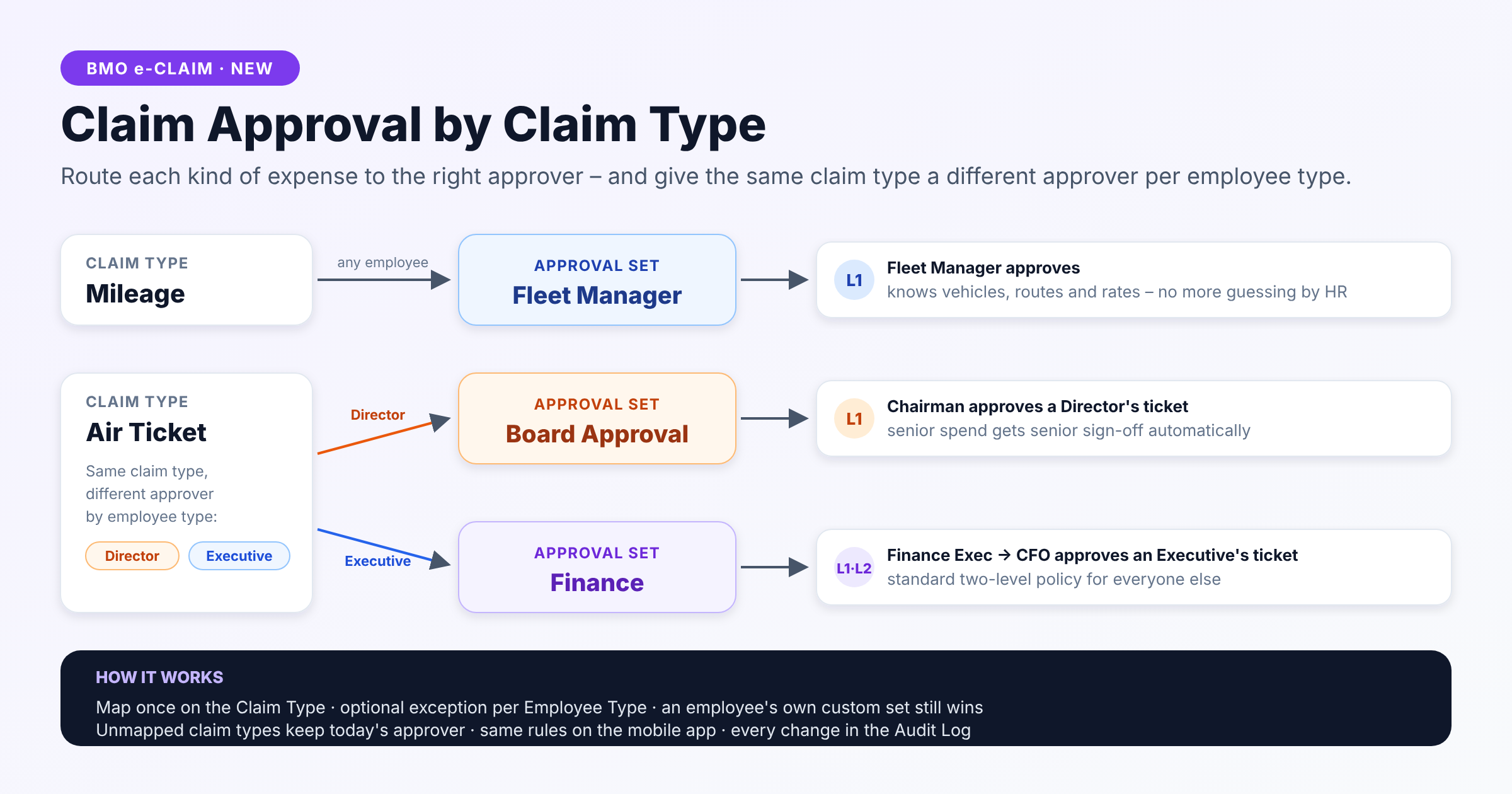
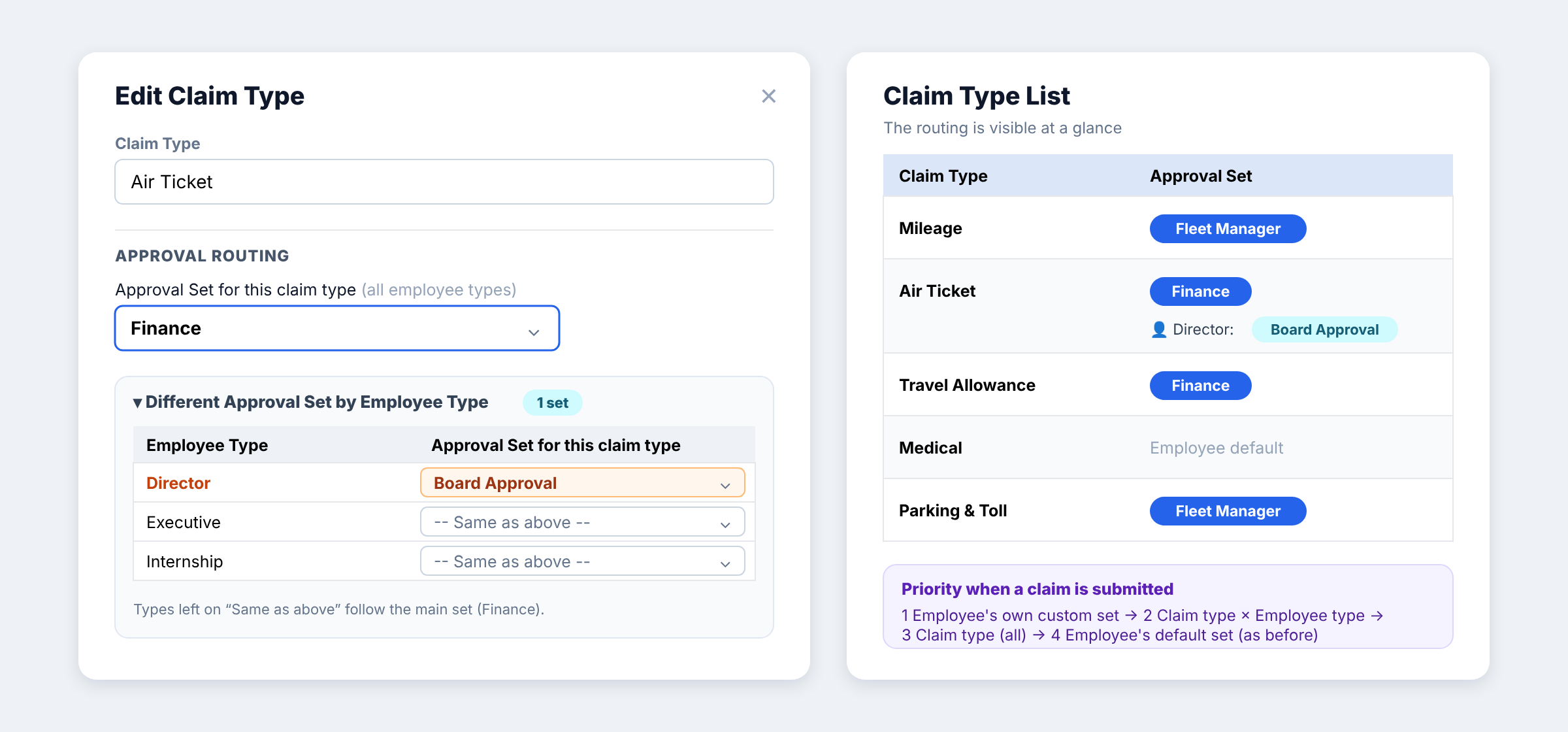
Choose an approval set on the claim type. Update the mapping centrally when policy changes, without editing every employee.
Route the same expense to different approvers for Directors, Managers or other employee types. Staff see the approvers before submitting.
Routing changes are recorded in the Audit Log. Pending claims retain their original approvers; new mappings apply from the next claim.
Unmapped claim types keep the employee’s default approvers. Each claim uses one approval chain; expenses with different approval sets are submitted separately.
Go to e-Claim › Claim Type › Edit › Approval Routing. Select the main Approval Set, then use “Different Approval Set by Employee Type” for exceptions. The Claim Type list shows both the main routing and exceptions at a glance.
The complete claim workflow
Budget controls and approval routing build on the everyday tools in BMO e-Claim.
Submit claim amounts, expense types and receipt attachments through the employee self-service portal or mobile app.
Configure approval sets to match your company’s review process and send each expense to the people responsible.
Use budgets alongside classic per-visit and per-year limits, choosing the approach that fits each claim type.
Employees see the available budget and mapped approvers before submitting, whichever device they use.
Review claim activity, expense patterns and reimbursement trends to give HR and Finance clearer spending visibility.
Connect approved claims with your BMO payroll payment process, based on your company’s configuration.
For existing BMO customers
Enable either feature separately under Company Info › HRM › Claim, then configure the rules your team needs.
Set Claim Budget by Employee Type and/or Claim Approval By Claim Type to Yes.
Configure budgets under Employee Type › Claim Setting. Set approval routing under e-Claim › Claim Type › Edit.
Employees see their balance and approval table on the claim form. The configured rules apply from their next claim.
Adopt at your own pace. Each feature is optional per company. Your current workflow continues until you enable it. Budget and approval rule changes are recorded in the Audit Log.
Your questions, answered
Yes. Employees can submit claims with supporting receipt photos through the BMO mobile app or web portal. The same budget checks and approval routing apply on both.
Set the annual amount per employee type and claim type, then choose a period of 1, 2, 3, 4, 6 or 12 months. Periods always start in January. For example, RM 6,000 a year split every 3 months gives RM 1,500 per quarter.
Yes. Switch Accumulate on to carry unused balance into the next period within the same year. Switch it off to reset the balance each period. The annual cap still applies, and all budgets reset on 1 January.
The employee receives the full budget for the period they join. For example, a June joiner on a quarterly RM 6,000 annual plan receives the full April–June budget of RM 1,500.
The claim form shows the budget, amount used and available balance. A claim exceeding the available budget cannot be submitted on web or mobile. Approvers also see an Over budget flag if a later edit causes a claim to exceed the budget.
Yes. Set a default approval set on the claim type, then add employee-type exceptions. For example, Air Ticket can go to Finance by default and to Board Approval for Directors. An employee’s own custom approval set takes priority.
Yes, when they share the same approval set. Each claim has one approval chain. After the first line is selected, the form offers only claim types with the same approvers. Submit expenses with a different approval chain as a separate claim. This applies on web and mobile.
No. Pending claims keep the approvers they were submitted with. Changes to the claim-type mapping apply from the next claim. Unmapped claim types continue to use the employee’s default approval set.
No. Each feature is switched on separately per company under Company Info › HRM › Claim. With a feature off, the existing workflow continues. Budget-based claim types can also sit alongside classic per-visit and per-year limits. Changes to budget rules and approval mappings are recorded in the Audit Log.
Yes. Approved claims can support the BMO payroll payment workflow, depending on your company setup. Ask our team to demonstrate the configuration for your business.
BMO e-Claim for your team
See budgets, receipts and approval routing together in a demo tailored to your company’s workflow.